
EnginesGuidesDocsFAQPatreonDiscordDownload
Sign in

RuneTranslate · translate games from Japanese and 30+ languages

Product

  • Download
  • Engines
  • Image text
  • Save editor
  • Cheat Mode
  • Changelog

Resources

  • Guides
  • Docs
  • Compare
  • FAQ

Community

  • Patreon
  • Discord
  • YouTube
  • Trustpilot

Legal

  • Privacy
  • Terms
  • Refunds
  • Contact
© 2026 RuneTranslate
Documentation

Getting started

  • What RuneTranslate is
  • System requirements
  • Install on Windows
  • Install on Linux
  • Sign in
  • Your first translation

Projects

  • Create a project
  • Supported engines
  • The queue
  • Moved folders and re-scan

Translators

  • Choose a translator
  • Free translators
  • Add an API key
  • Use a local model
  • Gemini Nano
  • RuneLingua
  • Run modes and retries
  • Batch API
  • Routing
  • Prompts
  • AI refiner

The editor

  • Editor overview
  • Filters and tags
  • Find and replace
  • File and folder tree
  • Shortcuts and go to line
  • Excluded lines and RuneSight
  • Regex exclusions
  • Glossary and auto-glossary
  • Translation memory
  • Image Studio

Export and share

  • Export a translated game
  • Share a patch
  • Fonts and non-Latin text
  • Right-to-left languages

For game developers

  • Ren'Py tl files
  • Developer tab
  • Strings export

More features

  • Collaboration
  • AI Connections
  • Proxies
  • RT Coins
  • Settings reference

Account

  • Plans
  • Manage your subscription
  • App language

Troubleshooting

  • Translated game won't start
  • Translated text shows as boxes
  • Requires an API key
  • Can't translate into this language
  • DeepL free is refusing requests
  • No supported engine detected
  • Project limit reached
  • Project too large to open
  • Game folder not found
  • Folder name warning
  • Daily runs used up
  • RuneLingua quota
  • Patch sharing limit
  • Update required
  • SmartScreen warning
  • Black or blank window
  • Paid features locked
  • Report a problem
RuneTranslateDocumentationFile and folder tree

The file and folder tree

The Files sidebar lists a game's text files with their progress. Click a file or folder to show only its lines.
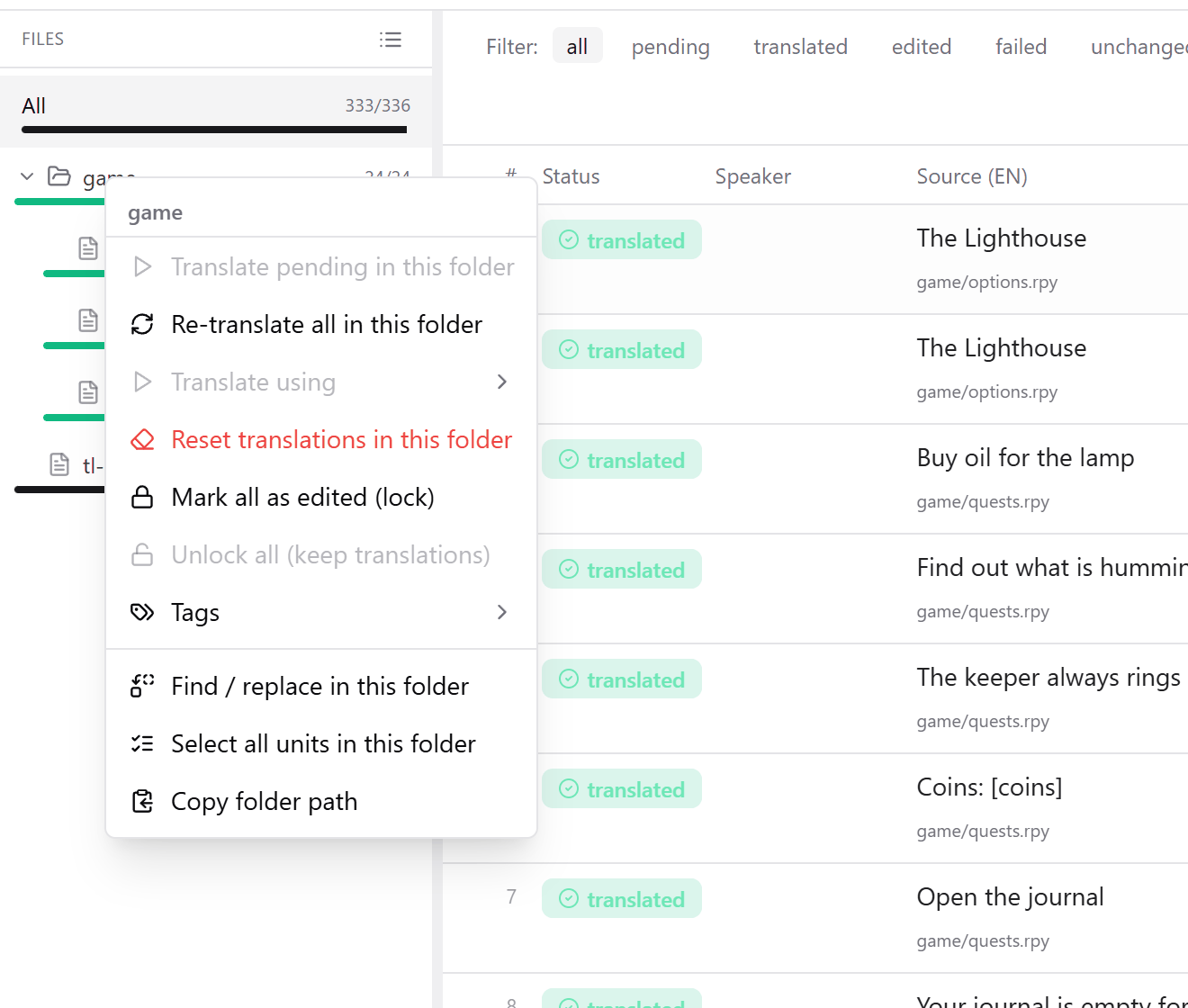
The Files sidebar with a right-click menu open on a folder, offering Re-translate all, Reset translations, Tags and Find and replace.
  • All shows the whole project.
  • Clicking a folder shows every line under it and opens it. The small arrow only opens or closes it.
  • Numbers show translated lines out of the total, with a bar that turns green at 100%. Excluded lines aren't counted.
  • The list icon switches between folders and a flat list.
  • Filter files appears when a project has more than 8 files.
  • Arrow keys move between rows, and open or close folders.

The table, tag counts and Find all follow your selection. Export and patches always cover the whole project, whatever you've selected here.

Acting on a whole folder

Right-click a folder or file to translate, re-translate, reset or lock everything in it, add a tag to every line, or find and replace inside it. Mark all as edited (lock) also locks lines that aren't translated yet, and those export as the original text.

Checked against RuneTranslate 1.4.6.

Still stuck?

Click Report at the top of the app to send us a ticket, or ask on our Discord. We read both.

PreviousFind and replaceNextShortcuts and go to line